Bring your own AI · Mac & Windows
Your AI key.
Your code and preview, together.
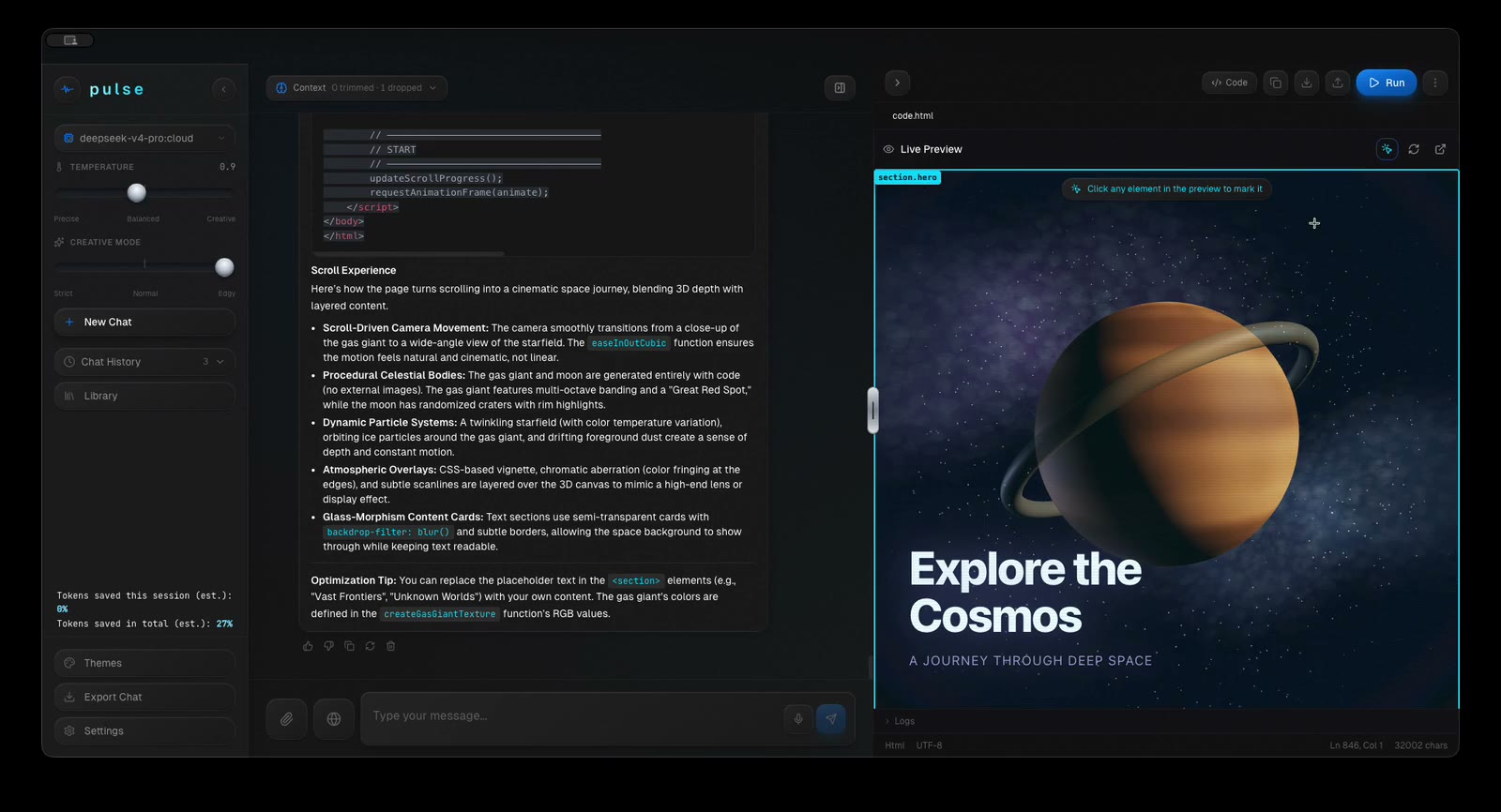
Build a page with the AI provider you choose. Pulse keeps the conversation, code editor and live preview in one desktop workspace, so you can see what you’re asking to change.
One-time software purchase. Bring your own supported AI keys; cloud usage is billed separately by your provider.
What does “bring your own key” mean?
Your API key connects Pulse to your chosen supported AI provider. The provider handles model usage and its charges; your Pulse purchase covers the desktop software. An AI chat subscription may not include API access or usage. Check your provider account before starting.
Choose your provider.
Open Pulse’s provider settings and add your own supported API key. Select a model for your conversation.
Give the AI one clear task.
Ask for a simple web page. Keep the code and running preview beside the conversation as you review the result.
Point to the part you mean.
Use the crosshair in the live preview to select an element and add a note. Send that context with your requested change.
A focused starting prompt
Start with a small, self-contained page. Here’s a prompt you can adapt:
Then request one change at a time: select a heading or card in the preview, describe the change, and inspect the result before continuing.
Keep the workflow yours.
Choose optional voice when you want speech input or playback. Pulse downloads and configures its local voice components in the background. Smart Routing is optional and can route simpler tasks to lower-cost companion models. Provider and hardware requirements still apply.
Before you buy
Is AI usage included in the software purchase?
No. Cloud AI usage is paid to your selected provider. Pulse does not include an API credit allowance.
Can I use local models?
Pulse supports compatible local models through Ollama. Local models require separate model downloads, setup and suitable hardware.
What is stored locally?
Workspace chats and files stay on your computer. Requests using cloud AI send the prompt and included context to your selected provider.
See the workspace. Choose your AI.
Explore the actual interface, supported providers and current offer before buying.